How to Install QBCore on FiveM Enhanced (2026 Guide)
· QBCore Team · 4 min read
On this page10 sections
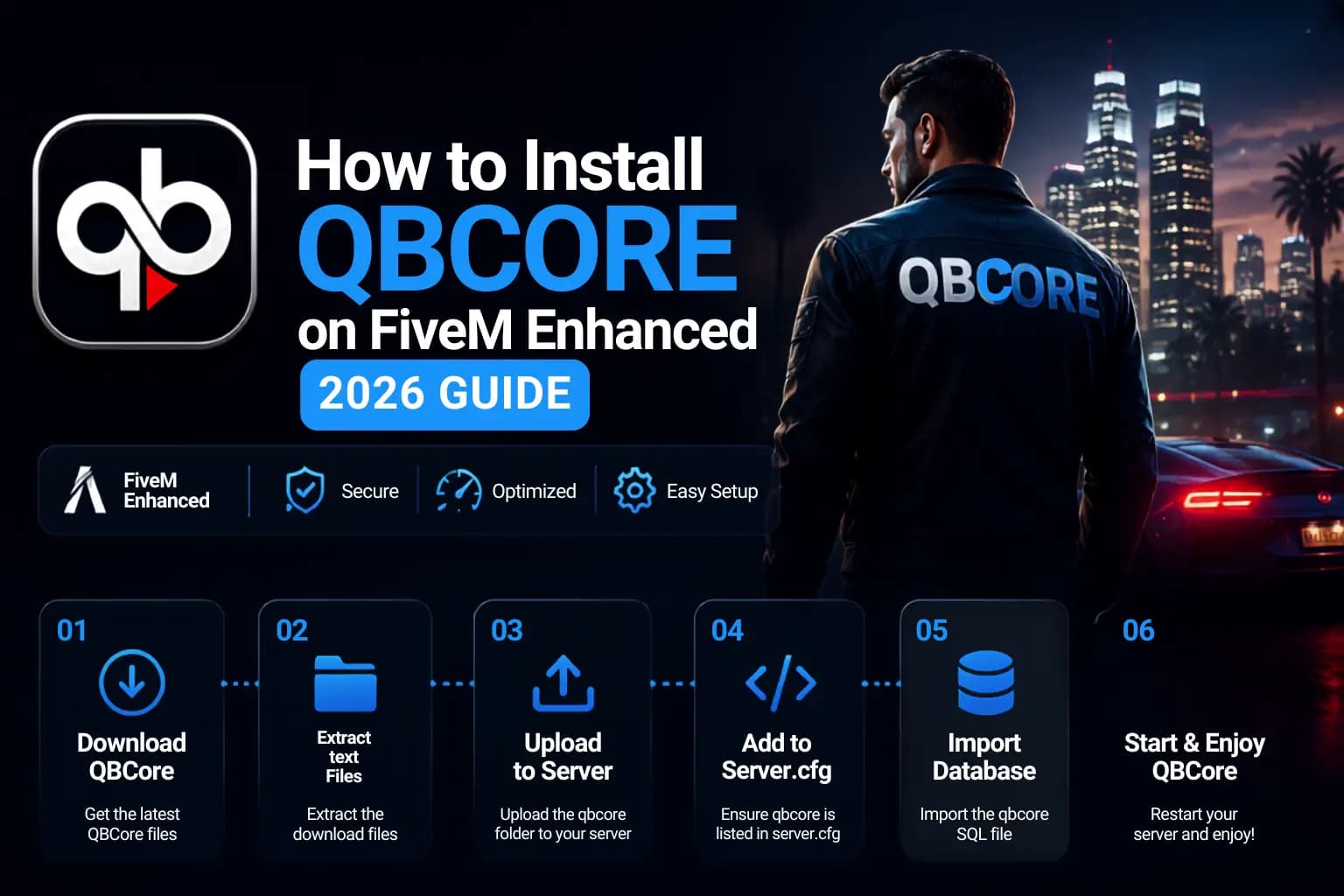
Now is the perfect moment to test your roleplay framework on Rockstar’s improved GTA V Enhanced build, as FiveM Enhanced support for QBCore has now come. Using simple, approachable steps, we’ll lead you through every step of the process in this guide, from obtaining the appropriate server assets to loading into your first QBCore Enhanced test server.
Note: Early access is still available for this configuration. Although support is growing every day, there are a few restrictions you should be aware of before beginning (discussed below).
What Is FiveM Enhanced?
The improved version of the FiveM multiplayer platform, FiveM Enhanced, is intended to operate on GTA V Enhanced instead of the original Legacy version. Along with the speed improvements that come with Rockstar’s Enhanced version, it also provides enhanced visuals, such as better trees, foliage, and lighting. Server owners can now start testing roleplay frameworks on this new build because support for framework resources like QBCore has only recently been released.
Important Restrictions Before You Begin
There are a few things you should be aware of before getting started:
Scripts that are locked won’t function yet. Currently, an Enhanced build cannot import any resource that has a CFX lock. Before they are compatible, script creators must unlock their resources and re-upload them using Rockstar’s Alchemy tools.
- It’s early access. Enhanced support is being actively developed by the QBCore team, and things are evolving every day. Any server you are currently building should be viewed as a test environment rather than a production server.
- There is currently a visual oddity in character creation that shows up independent of configuration; see the Known Issues section below for additional information.
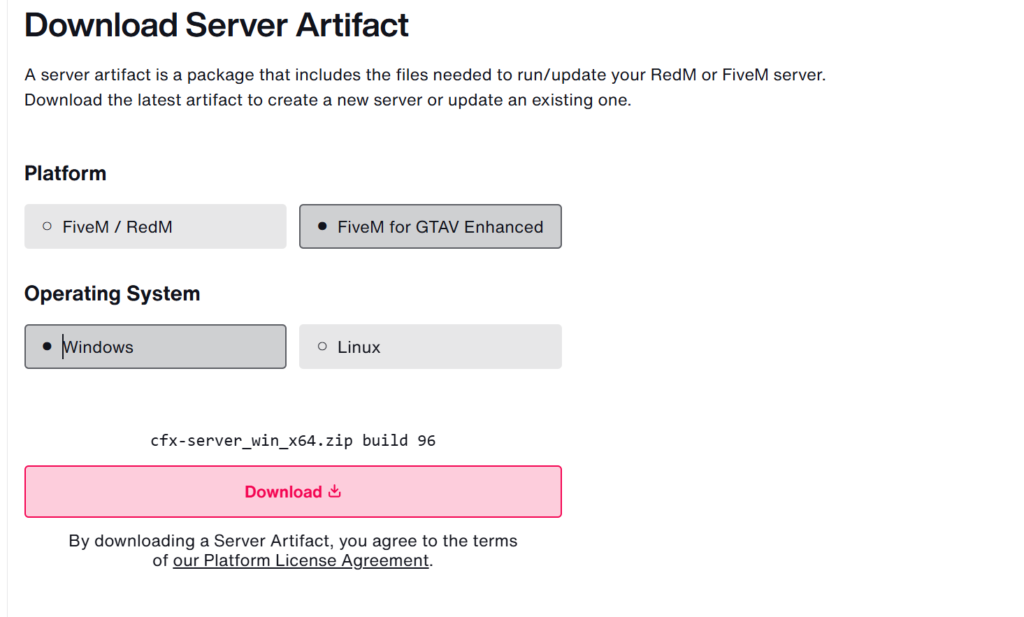
Step 1: Download the Server Artifacts
- Go to the official FiveM artifacts and documentation page.
- For GTA Enhanced, choose FiveM.
- Select Linux or Windows as your operating system.
- Get your platform’s artifacts file.
Step 2: Set Up Your Server Folder
- Navigate to your main server directory.
- Create a new folder — name it something clear, like GTA5 (GTA Enhanced). Inside that folder, create your usual server and data subfolders.
- Extract everything from the artifacts download and copy it into the new server folder.
Step 3: Deploy the QBCore Recipe
Now it’s time to grab the QBCore recipe built for the Enhanced repo:
- As with a Legacy configuration, return to your server folder and click the CFX server icon.
- Proceed through the txAdmin authorization page after linking your account.
- When asked, create a password.
- Accept the agreement and its terms.
- Change the name of your server profile to something like QB Doc EH Test.
- Select Remote URL Template from the deployment screen.
- Enter the QBCore Enhanced repository recipe URL.
- Make the deployment path point to your data folder.
- Click “Save.”
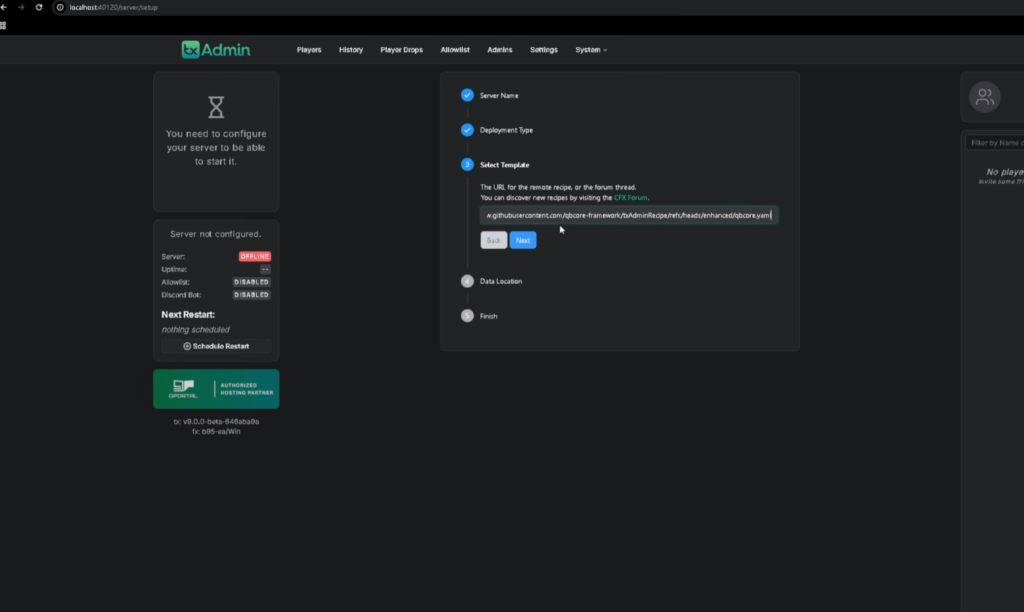
Step 4: Run the Recipe Deployer
- Select “Run Recipe Deployer.”
- To continue, click Next.
- Create a key by going to the CFX Portal.
- In the deployer field, paste that key.
- Now, the deployer will fetch all necessary files straight from GitHub; depending on your connection, this could take a few minutes.
Step 5: Start Your Server
- Click Next, then choose Save and Run Server after scrolling to the bottom.
- During the initial boot, the console will display some strange or “off-looking” output; this is typical and expected for an early-access build.
- Click Restart again after it has settled.
- Before proceeding to the next phase, allow the server to load completely.
Step 6: Connect via FiveM Enhanced
- Open the FiveM Enhanced client.
- The Rockstar Games Launcher will open if you allow it to validate.
- Install any outstanding updates after logging into your Rockstar account if prompted.
- Choose your server after connecting to localhost.
- Await the download of the resources. The client will connect, go to “Awaiting Game,” and then load into the environment.
One to five minutes may pass during the initial load. Double-check your setup before proceeding if you’re stopped on the loading screen for more than five minutes. This indicates that something went wrong in an earlier step.
Step 7: Create Your Character
Once loaded in:
- Create a new character by using the multi-character panel.
- Select your name, gender, nationality, and birthdate.
- Verify and develop your persona.
- You are now in your QBCore Enhanced server when you leave the apartment/spawn area and enter the street.
Known Issues in Early Access
- One reported drawback of the current early-access build is that the character creation screen presently shows with a visual oddity regardless of settings.
- While larger, more detailed Enhanced assets flood in, screens may momentarily flash during the initial map/resource load.
- Until QBCore’s Enhanced support is further developed, treat this build solely as a test server.
As Rockstar’s Enhanced build becomes the new norm for FiveM roleplay servers, QBCore running on FiveM Enhanced is a terrific way to stay ahead of the curve. Even though there are still issues with character creation and locked scripts to work out, the framework is already functional enough to investigate and test. As the QBCore team continues to improve Enhanced compatibility, keep a watch out for future releases.
Written by
QBCore Team
The QBCore Team builds, tests and supports every script we sell at QBCore Shop. Our guides come straight from running and troubleshooting real FiveM roleplay servers on QBCore, ESX and Qbox — so the steps are the ones we actually use.
More about us →